Art director
Guide the visual direction, coordinate scene work and review results.
 AIMAN FORGE
Sign in
Create on your own. Bring your team.
Build visual worlds. Develop scenes. Create images and video.
Keep your projects, materials and budgets working together.
Sign in with an existing account
Individual scenes. A shared film.
Your project gives everyone a place to work. References, creative versions and feedback stay connected to the scenes you are making.
Projects, scenes
and responsibilities
Shared references
and visual direction
Image, video
and scene development
Specific feedback
and selected results
01 /
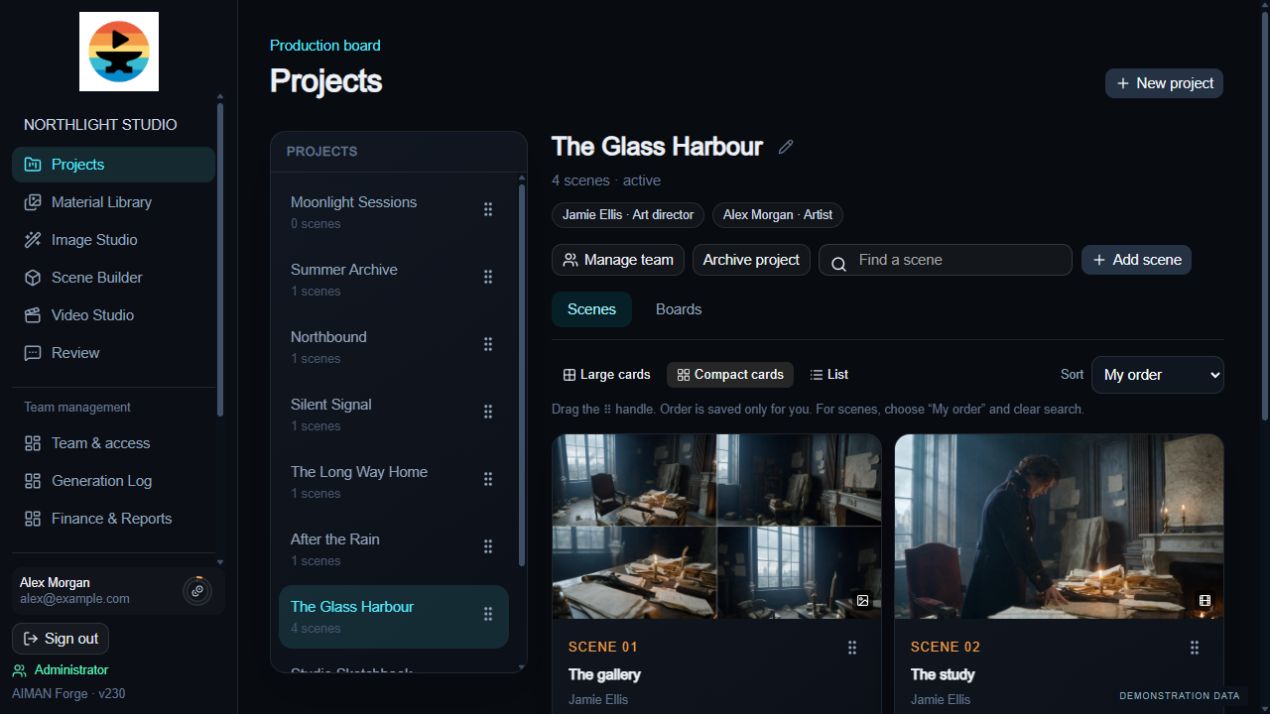
The big picture. And every scene.
Structure your project into scenes, assign participants and open the right studio from the project. Visual previews help the team find its way.
02 /
See the story. Shape the direction.
Collect references, arrange frames and add notes on a shared canvas. A clear visual direction, without another meeting.
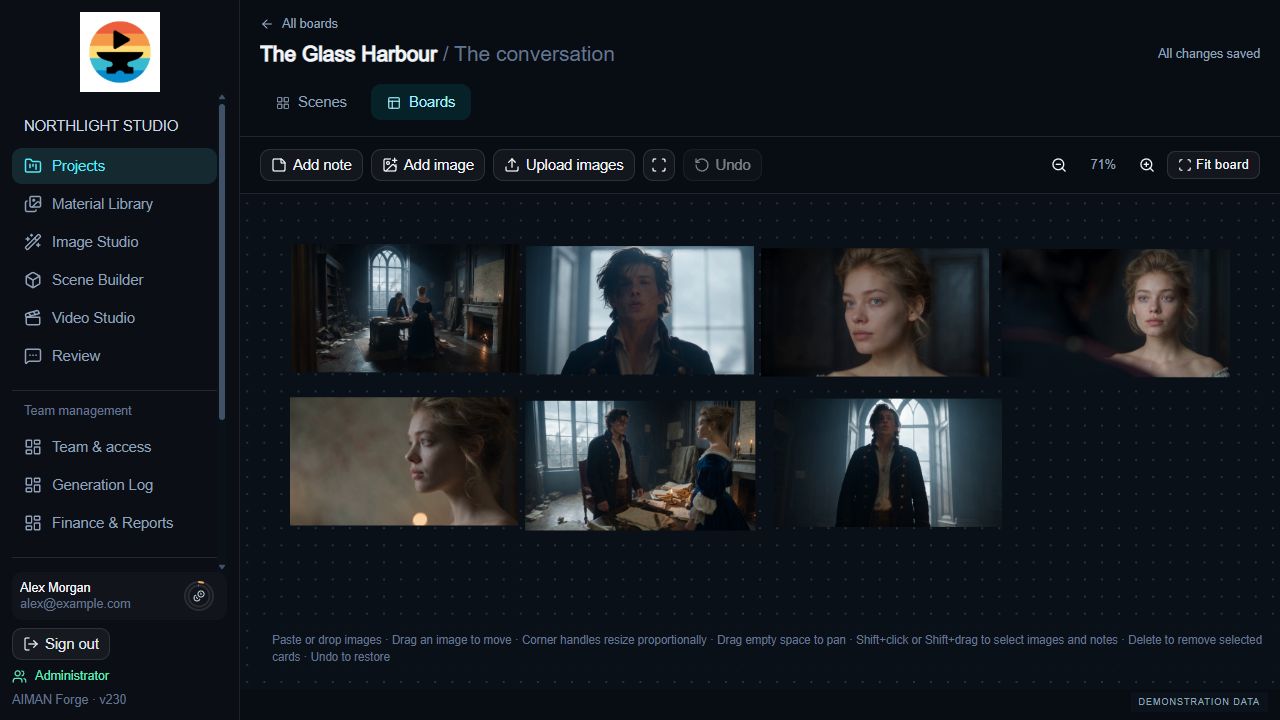
Paste or upload images. Add notes. Select, arrange, resize and undo. Original files stay in the library.
03 /
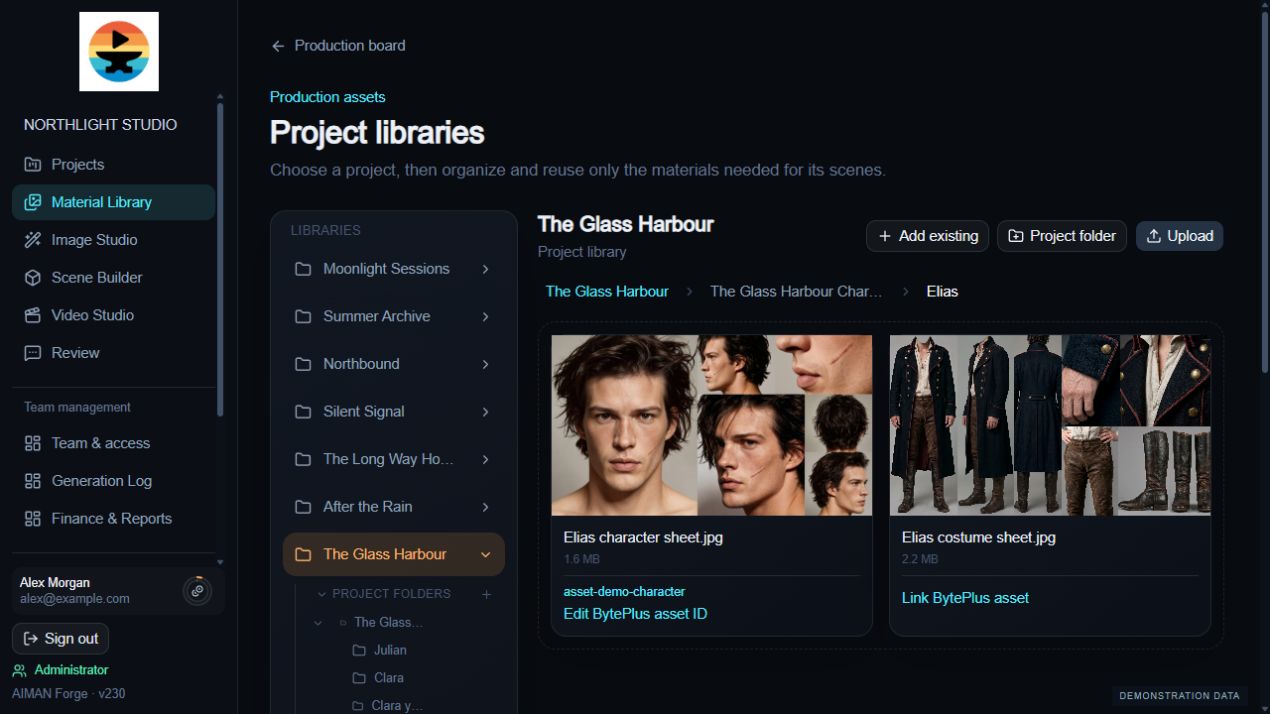
Keep the good references close.
Collect source images, video and other project materials in one library. Find the files you need and reuse them as you develop your scenes.
04 /
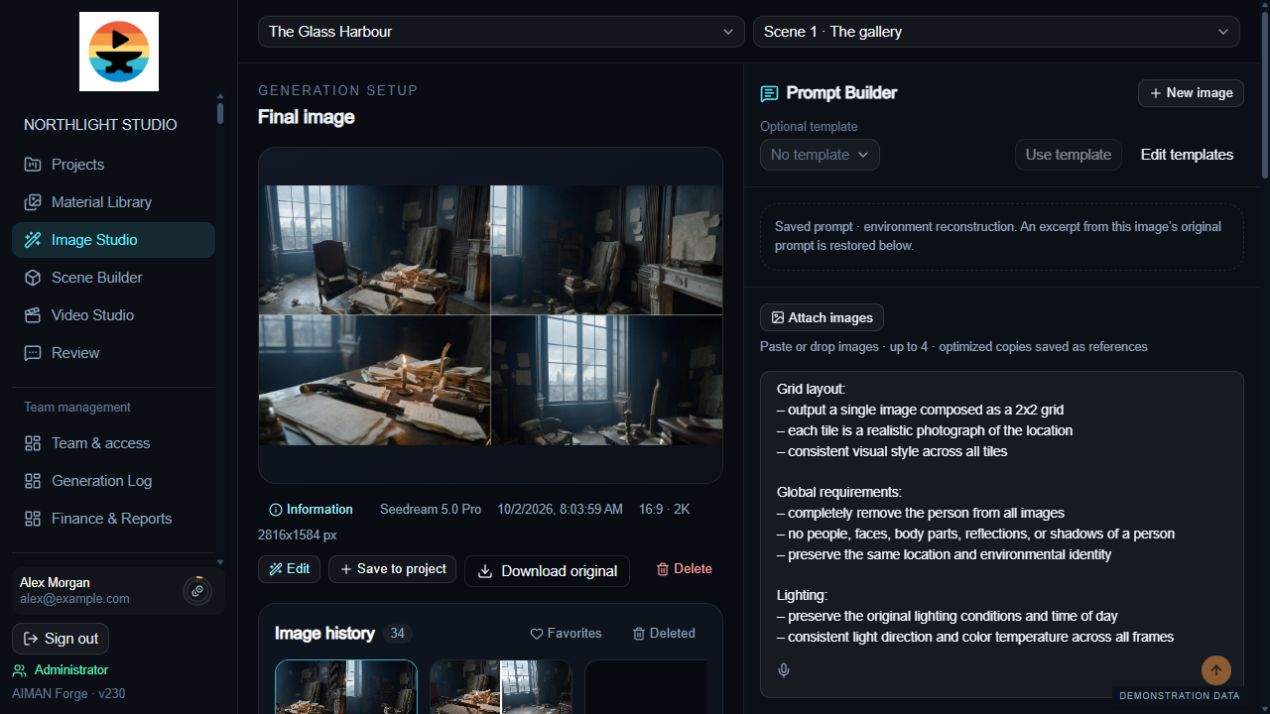
Give an idea something to look like.
Combine descriptions with visual references. Choose your model and settings, create variations and refine the details that matter.
Edit a selected image by describing what should change. Keep the original and edit versions together, and return to saved generation settings from History.
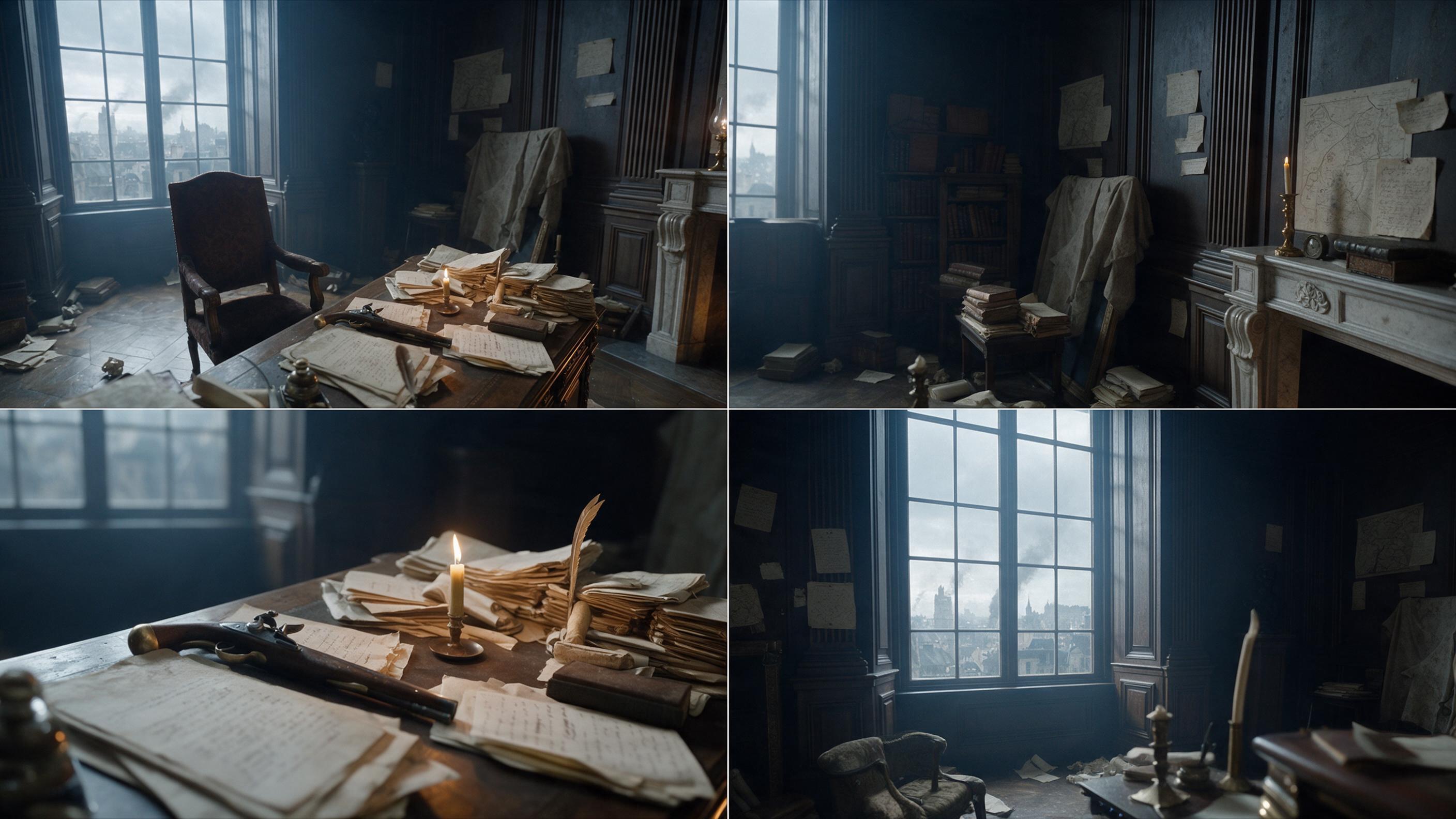
Stories do not all play it safe.
Explore mature themes and bold visual ideas with supported image workflows, within the selected provider’s content rules.
Use only lawful content and appropriate rights and consent. Availability and restrictions depend on the selected model and provider.

05 /
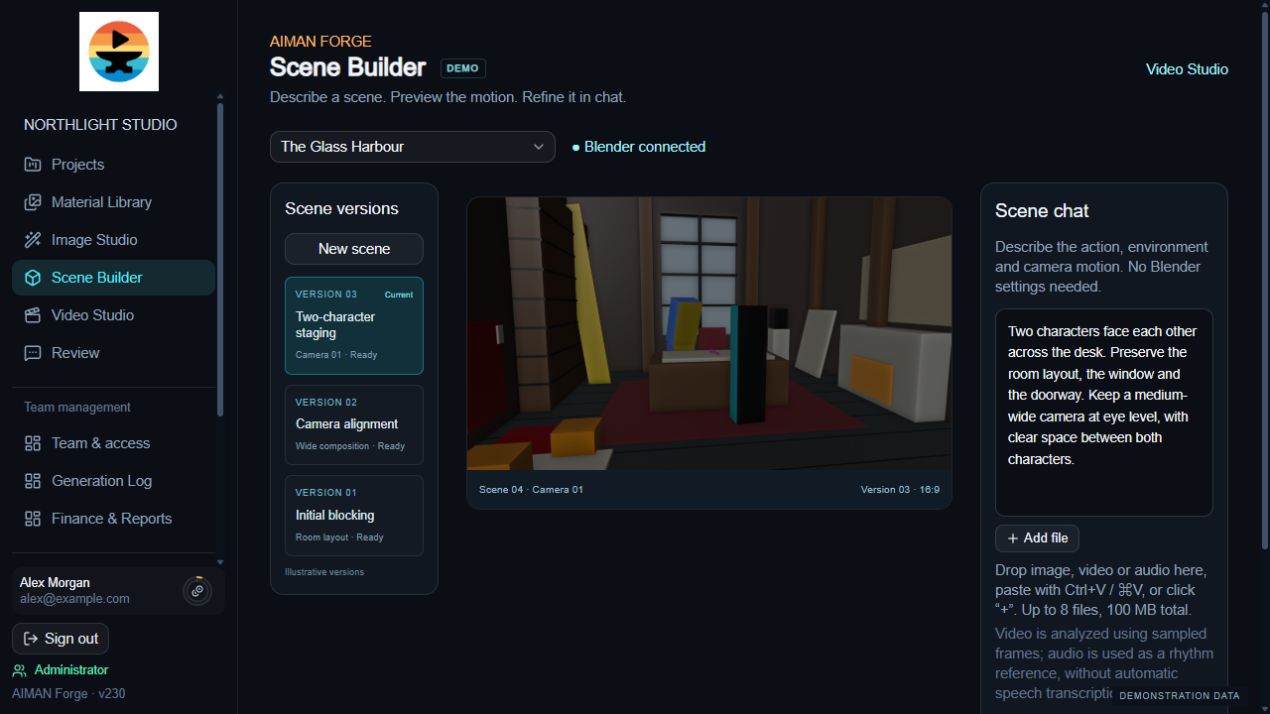
Plan the space. Explore the camera.
Describe the action, environment and camera movement. Develop scene blocking with a connected Blender executor, then refine the scene in chat.
Requires a connected Blender executor.
06 /
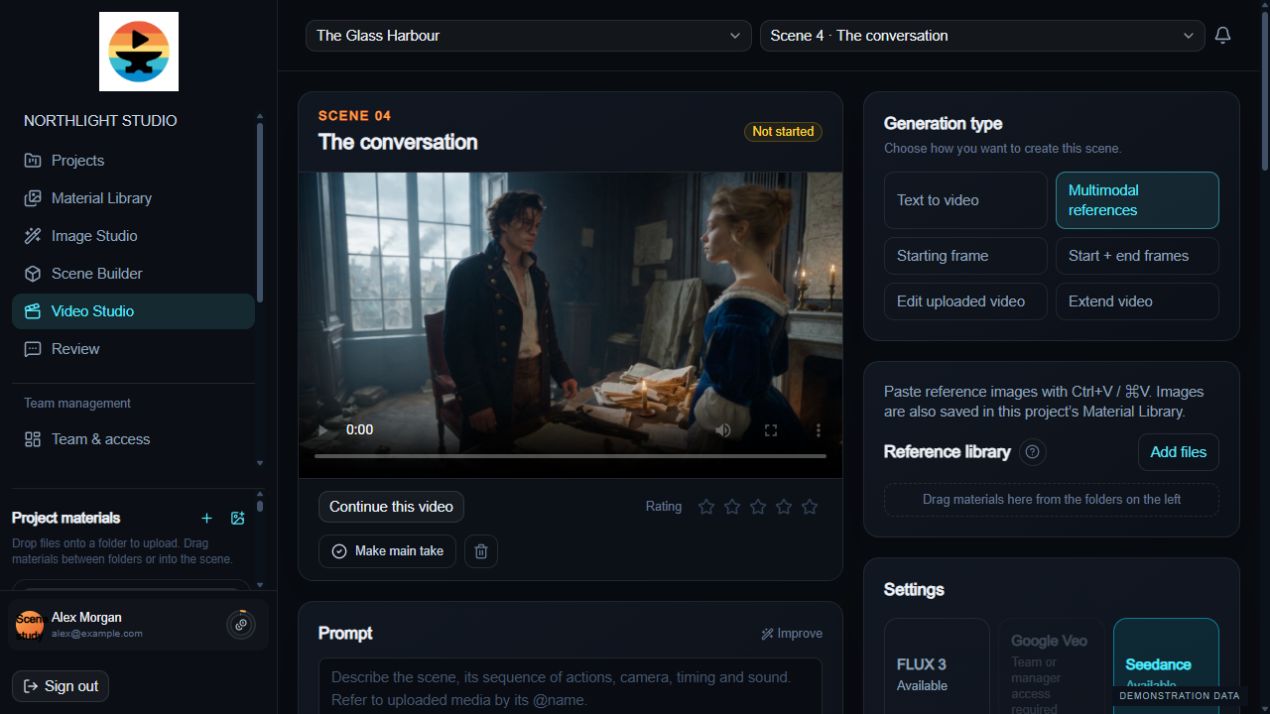
Find the movement that tells the story.
Develop action and camera movement from text, image references and supported video inputs. Extend an existing clip with supported models, then compare the resulting takes.
07 /
Change the detail. Keep the original.
Choose an image from History and describe the change: clothing, materials, colour or another visual detail. Keep the original and edit versions together.
Upload your own footage or choose a generated take. Open Edit, describe the change and save the result as a new version in the same video history.
FLUX Video Edit output is up to 720p and does not support seed. Available models depend on your team’s connection and permissions. AI edits can change more than the requested detail: review the result before use.
A take from History or an uploaded clip
Choose the fragment and describe the change
Switch between the result and its original
08 /
Feedback with a clear point.
Move frame by frame. Pin the detail, write a comment and keep the conversation attached to the right file and moment.
Frame stepping is available when the source frame rate can be determined.
Select a sample comment below to jump to its moment in the clip.
09 /
Different roles. One creative direction.
Give people clear responsibilities and access to the work they are involved in. Solo artists and team administrators can request an invitation; access and roles are assigned separately after review.
Guide the visual direction, coordinate scene work and review results.
Develop assigned scenes, explore versions and refine the work.
Manage team access, distribute budgets and set individual limits.
10 /
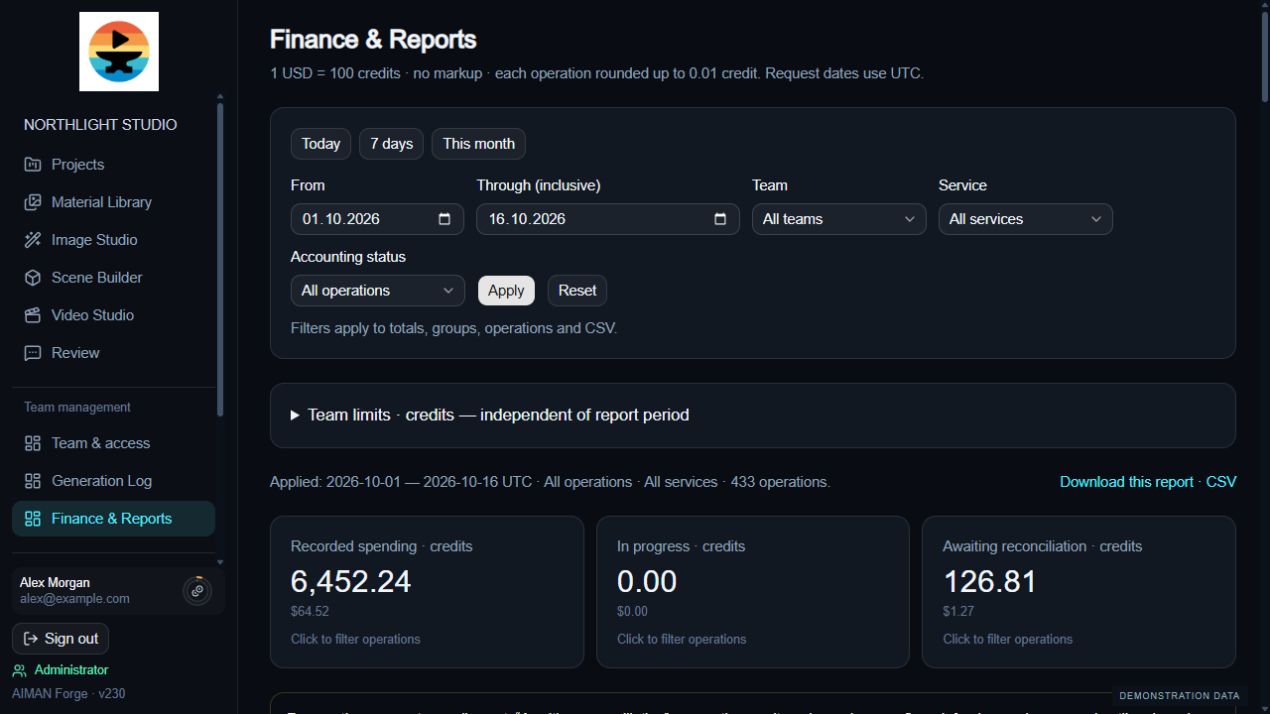
Creative freedom. A considered budget.
Distribute generation budgets across the team. Set limits, track recorded spending and see funds reserved for unfinished operations.
Forge accounting is separate from your provider balance. Forge limits do not disable provider-side automatic billing. Estimated costs are not confirmed invoices.
11 /
Know where the work stands.
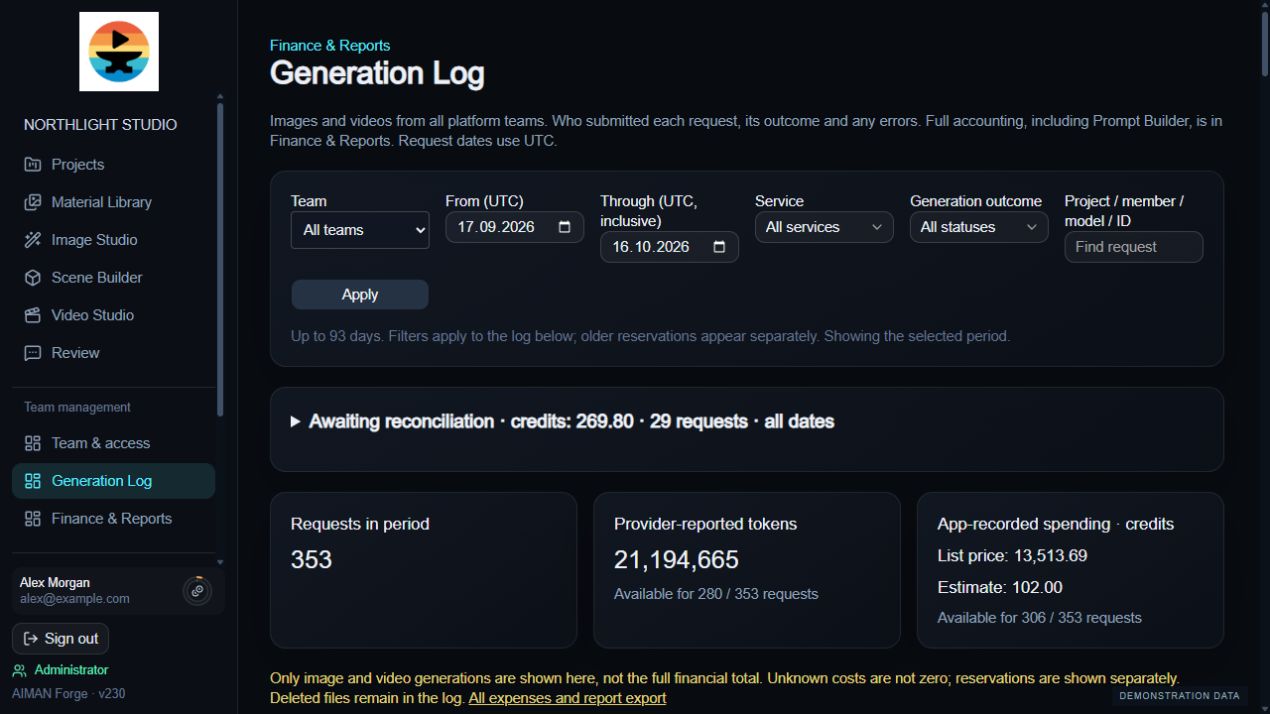
Find previous requests, check their outcomes and inspect recorded details. The generation log gives administrators a place to investigate work that needs attention.
Filter by time, service, team and outcome. Open a generation passport to inspect the saved prompt, settings and available seed, then copy or export its report as TXT or JSON.
12 /
The right tools. The right access.
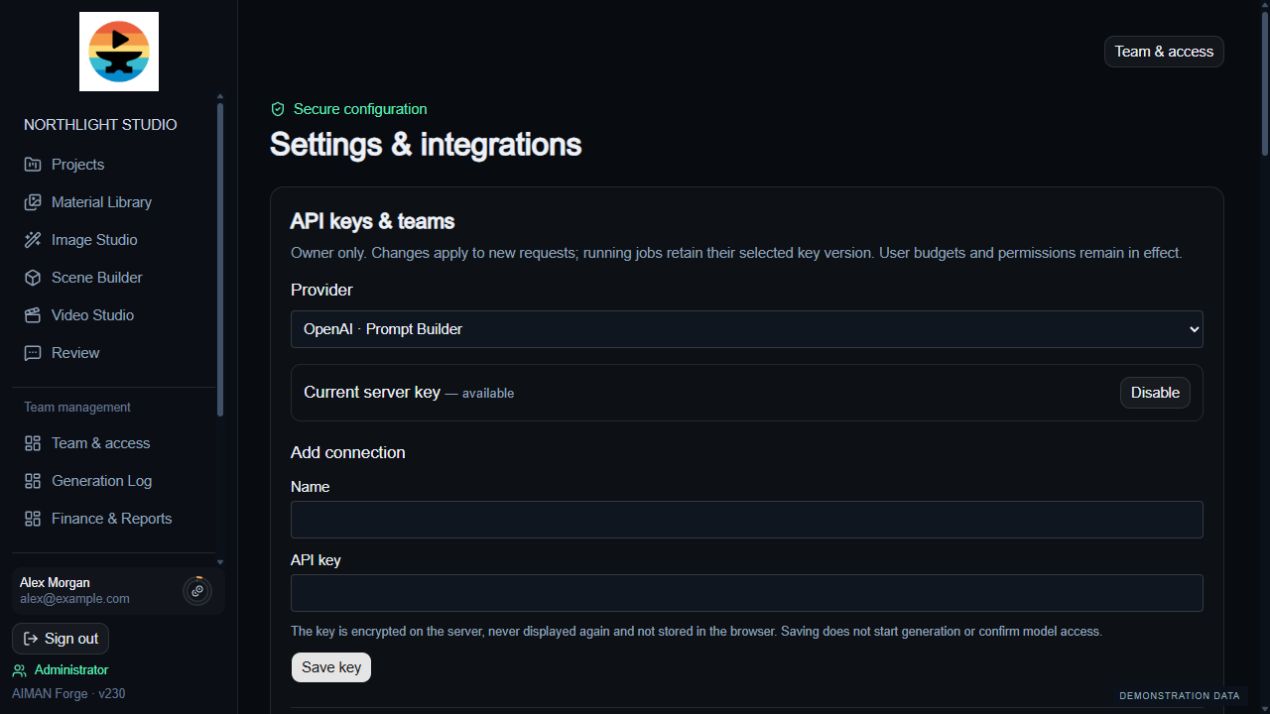
Manage supported API connections and control which models teams can use. Keep provider configuration separate from individual permissions and spending limits.
Model availability depends on the connected provider, account access and executor readiness.
Seed is saved where supported; reusing it does not guarantee an identical result. FLUX Video Edit has no seed control.
Built with real production teams
AIMAN Forge is in its early stages. We are improving the tools through real team workflows, with the goal of supporting more of the filmmaking journey.
And we’re just getting started.